



Magazine Archive
Home -> Magazines -> Issues -> Articles in this issue -> View
Microdeal Replay 16 | |
Sampler for the Atari STArticle from Music Technology, December 1992 | |
Serious ST sampling?
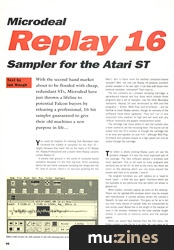
With the second-hand market about to be flooded with cheap, redundant STs, Microdeal have just thrown a lifeline to potential Falcon buyers by releasing a professional, 16-bit sampler guaranteed to give their old machines a new purpose in life...

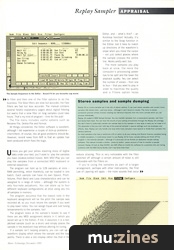
Editor main screen (A) with sample in mid edit showing lots of luvverly icons
You could be forgiven for thinking that Microdeal have cornered the market in samplers for the Atari ST - largely because they have! Hot on the heels of ST Replay VIII, Replay Professional and a dozen other Replay variants comes Replay 16.
It breaks new ground in the world of computer-based samplers because it's the first low-cost 16-bit sampling device for any home computer including the Amiga and the PC (and of course, there's no low-cost anything for the Mac!). But is there room for another computer-based sampler? Well, not only can Replay 16 produce excellent quality samples in its own right, it can also edit those from external samplers. Interested? Then read on...
The box contains an L-shaped sampling cartridge, a spiral-bound manual and four disks which contain three programs and a set of samples. Like the other Microdeal samplers, Replay 16 was developed by AVR and the programs - Editor, MIDI Play and Drumbeat - will be familiar to most Replay owners, though all versions of the software have been updated. They will run in any resolution from medium to high and will work with any 'official' resolution and graphic enhancement board.
The cartridge has mono phono In and Out sockets plus a level control to set the recording level. The sound can be output from the ST's monitor or through the cartridge Out to an amp and speaker (or your hi-fi) - although MIDI Play, Drumbeat and samples played at a high speed can only be output through the cartridge.
The Editor is where existing Replay users will see the greatest changes. It's also the most important part of the package. The new software adopts a windows and icons approach. This is not used by many programs and certainly few on the ST. As well as the menu bar, there are icons on the desktop which you can move around the screen and click on to activate. I love it!

Editor main screen (B)
The program furnishes you with options on a 'need to know' basis - a little like your agent. Functions which are not available at any particular time are either not shown or greyed out.
When loaded, samples appear as icons on the desktop. These can be opened into windows which may be resized and repositioned. A sample window shows the sample's filepath, its type and resolution. This goes so far as to tell you how many pieces of sample data are represented by one screen pixel! Below this is the length of the sample on view in the window, followed by the total sample length (either in seconds or memory units) and the sample speed.
When you select New Sample from the File menu, the Editor creates a new file for it on disk. You can open an 8-bit or 12/16-bit sample file in mono or stereo (you can't actually record in stereo but you can process stereo samples) and you can set the sample length in seconds, samples or frames (useful for film and video timing). The program defaults to a sample length of one quarter of the free memory.
The secret of getting a good sample is to get as much signal into the machine without overloading the input. The Record Control panel displays the incoming waveform and you adjust the level control on the cartridge until the peaks are just short of the upper and lower limits. Then you cross your fingers and click the sample button.
Pre-Sample records incoming material in a loop until stopped, thereby allowing you to select what you want to sample after the event. Don't you wish life was like that? The Set Frequency menu houses two powerful functions. One lets you assign a different Play/Record speed to a sample and the other will actually Re-Sample it so it plays at a different speed.

The Sample Sequencer In the Editor - Sound FX for your favourite cop movie
A RAM indicator gives a visual indication of how much RAM is free. Clicking on it provides a more detailed description of the samples in memory. You can get info about samples which are on disk here, too. Tape transport type controls record and play samples and move through them.
Anyone who has dabbled with any kind of sampler will know how difficult it is to produce good loops. To help you out, Replay 16 has a Join function which butts the end of the loop against the start of it at the highest resolution - so you can see how close the two points match in order to minimise clicks and glitches. You can also scroll through both sides of the sample manually and, with the Snap buttons, move straight to the next point where the sample crosses the centre line - the quietest part of the sample.
I confess I was a little disappointed not to see an automatic loop function - this is something that computers are good at, after all, and it would have been nice to be able to play the sample from the Join window. As it is, you have to select some likely loop points, exit the window, try it and then go back for another attempt.
I found I was quite successful at looping complex samples - including some Gregorian chants - although more pure sounds such as pan pipes invariably produced a click even after fine tuning by hand. So I introduced it to the delights of Fade Looping and to my amazement found that this produced an excellent pan pipe loop.
You can define 10 samples as a Set which will load in one operation. A Set contains info about where the samples are on disk, not the samples themselves. Samples can also be played from a MIDI keyboard although this is basically to test them at different pitches.

FFT - we show you mountains because they're there
The samples themselves are a touch noisy when played outside their original tuning. The Editor doesn't apply filtering on playback - unlike the MIDI Play program.
There's a simple sample sequencer which will play samples in, er... sequence. It can be used to trigger complete samples or sections of them defined using Blocks. It works rather like a cue list and includes 'wait' instructions.
The SFX section houses reverb, echo and flange effects which can be applied directly to the sample.
The Filter menu offers FFT (Fast Fourier Transform - the famous 'mountains' display) plus Fast and Slow Filter options. Use FFT to see which part of a sample you want to filter and then one of the filter options to do the business. The Slow filters are slow but accurate, the Fast filters are fast but less accurate. The manual contains several helpful explanatory pages about digital filtering but warns that a slow filter on long samples could take hours. That's my kind of program - time for the pub!
The File menu includes useful options such as Rename File, Delete File and Format.

Song mode in Drumbeat 16
All things considered, the Editor software is excellent, although I did experience a couple of lock-up problems - intermittent, of course, like all good problems should be. However, recent news from AVR is that an update has been produced which fixes the bugs.
Unless you get your jollies stashing disks of digital data under your bed, you'll want to play the samples you have created/edited/nicked. With MIDI Play you can play the samples from a connected MIDI keyboard or external sequencer.
The program can hold up to 128 samples at once - RAM permitting, which thankfully, can be loaded in one batch. Each sample can have its own Speed, Pitch, Volume, Pitch Bend and Loop characteristics and can be assigned to a range of notes - although the system is only four-note polyphonic. You can store up to four different keyboard configurations at once using any mix of samples in memory.
The program assumes that the lowest note in the keyboard assignment will be the pitch the sample was recorded at, so you must retune the sample if you want to play lower notes. You can assign Equal and Just tuning temperaments to the samples, too!
The program looks at the sample's header to see if there are any MIDI assignment details in it (which you would set up in the Editor). If not, it assumes it is a non-pitched sample (such as a drum) and simply places the sample in the keyboard map without altering its tuning.

MIDI Play - samples can be assigned to any group of keys
If a sample isn't looping properly, you can call up a waveform display which shows the sample and the loop points. There is also a Join display rather like that in the Editor, and - what's this? - an Autoloop function! Actually, it's similar to the Snap function in the Editor, but it tries to match up directions of the waveform's slope when you move the cursor - not just select places where the sample crosses the centre line. Works pretty well, too.
The more samples you play back at once, the more the computer's processing power has to be split and the lower the playback quality. You can select the number of voices - from one to four - that you want to play in order to maximise the quality and a Filters option helps reduce aliasing. This is very noticeable with the filter switched off although a certain amount of noise is still noticeable with the Filters on.
If you're using the samples as part of a larger arrangement, perhaps with other instruments, the First Law of Layering will apply - the more sounds that occur at any one time, the less noticeable will be the shortcomings of any individual sound. In other words, any noise will appear less. Given the price of the unit, the results range from acceptable to excellent.
The Drumbeat program effectively turns the ST into a programmable drum machine. Samples created with the Editor can be loaded into any of 30 drum positions to make a kit.
Drumbeat uses the traditional drum-machine method of song construction. You can create up to 50 Patterns which may be chained into a Song, comprising up to 100 Patterns. It can hold 10 Songs in memory at once and play up to four samples at the same time. It can also sync with an external MIDI device as slave or master and a MIDI Note On command may be sent whenever a sample is played. You can connect a set of MIDI drum pads and assign samples to six separate pads each with three different velocity samples.

REPLAY6: The Autoloop ski instructor in MIDI Play matches the slopes
Song and Pattern construction is straightforward. You load in samples to form your kit, enter the hits on a grid in Pattern mode and link the resulting patterns together in Song mode.
Pattern mode includes Copy and Mark commands to help with editing, and you can tap in new hits while listening to playback in realtime. In Song mode you can specify how many times a Pattern is to repeat and there are Jump commands which let you create chorus and verse sections and so on.
The Drumbeat front end, although updated, is not quite as innovative as the Editor. A large menu is always at the top of the screen, which restricts the display area - you can only see 15 of the 30 drums on screen at once in Pattern mode.
Finally, the demo song provides an excellent example of what can be accomplished with the program. As drum samples are generally short, deficiencies in playback quality are generally barely noticeable. I was impressed.
Thankfully, there is only one manual, unlike the other Replays which had separate books for each of the programs. It's spiral bound and generally well written and illustrated, although the grammar could be tightened up (ever heard of the possessive apostrophe lads?). And there's no index. Tut! Tut! But, for the price, Replay 16 is almost impossible to fault; it's accessible in a way that many dedicated samplers aren't. Indeed, having so much information presented to you on screen makes working with a conventional sampler seem like hard work.
The only superior 16-bit ST-based sampling package is AVR's own Pro-16, which will set you back another £170. For this you get wider bandwidth and a better signal-to-noise ratio. But I must say I was impressed by the quality of Replay 16 system - particularly when playing back samples as one-shots from within the Editor. True professional results.
Drumbeat produced knockout results, too. However, you need to choose your samples carefully and do a trade-off between the number of voices and the sample quality in MIDI Play.
Having read this far and taken a squint at the price, you may already be reaching for your chequebook or flexible friend, but wait... there's more. Microdeal in their infinite and all-consuming benevolence are offering an upgrade deal to existing Replay sampler owners. Believe it or not, if you have any of the range of Replay samplers, you can buy Replay 16 at cut-price! Yep, yours for only £79.95.
Price: Replay 16 £129.95 (or £79.95 trade in). Includes VAT and P&P.
More from: Microdeal. (Contact Details).
Revolutionary resolutions
The resolution is the accuracy or fineness of the measuring scale. For example, you'll get a more accurate indication of the length of an object if you measure it to the nearest inch rather than the nearest foot. The earliest samplers only had a resolution of 8 or 12 bits. Most current systems are 16-bit. The 8-bit resolution of many computer-based samplers is generally considered too coarse for professional use. Even 12-bit resolution is audibly inferior to 16 bits.
Talk about sampling rates and we get involved with Nyquist's theorem. This basically states that to reproduce accurately a certain sound you must sample it at twice its highest frequency. CDs use a rate of 44.1kHz, which is more than double our accepted threshold of hearing. However, if you are sampling sounds with predominantly low frequencies you can often get good results by sampling at lower frequencies.
In case you're wondering why all samplers don't sample at the highest possible rate and resolution it's because they need the hardware to do the job and the higher the spec, the higher the price. Also, the more data you have, the more memory you need to store in. And to be fair to all concerned, there is a bit (sorry!) more to manufacturing a sampler than simply high rates and resolutions.
Replay 16 offers 16-bit sampling at sample rates from 5.5kHz up to 50kHz. At best, the quality is up to pro standards.
Stereo samples and sample dumping
Replay 16 supports MIDI Sample Dumps. You can transfer samples from a stand-alone sampler, edit them and dump them back. You can hear the results of your editing immediately through the Replay 16 cartridge. You don't have to continually transfer the sample back to the sampler to hear what a mess you've made of it! The downside is that you can't edit any of the external sampler's special settings such as envelopes and effects. Also, Replay can only handle one loop while many samplers have several or divide their samples into various sections.
As most samplers only have a restrictive LCD on which to do your editing (the Roland S-series samplers being a notable exception), it could prove easier to use Replay 16 for basic sample editing and finish off the program in the external sampler - although it's obviously not as flexible as dedicated sample editing software. The manual includes a button-press by button-press account of how to transfer a sample between Replay 16 and an Akai S1000, and AVR offers to modify the software for customers who are having problems with the MIDI Dump facility. Can't say fairer than that!
Blocks and edits
Block commands can be performed between samples of any format so an area clipped from a mono 16-bit sample could be spliced into a stereo 8-bit sample or the other way around.
The Edit menu houses many special processing functions. You can fade in and out by a controllable amount. Volume Edit will scan the sample for peaks and suggest the maximum amount by which the volume can be increased. A Slope command offers scaleable volume changes, useful for matching the ends of two dissimilar samples after they have been grafted together.
Reverse and Clear do as their names suggest. Fill will repeatedly paste the contents of the Clipboard into the sample area until it's full, while Overlay will superimpose one sample on another. Gap inserts a gap into the sample the size of the Block. Repeat works in a similar way but pastes the contents of the Block into the sample - useful for the infamous N-N-N-N-Nineteen effect.
Loop Fade is a very useful effect which can help smooth out glitches in hard-to-match loops. It fades a portion of the sample before the start of the loop into the part of the sample leading up to the end of it. I produced good results with this.
Channel Swap alternates the left and right data in stereo samples and channel Copy copies one channel to the other one. Cross Fade will gradually fade out data on one channel and fade it in on top of the other - and so too will Pan Image, but here you can set the percentage amount of the fade for both channels. You can also fade from right to left, left to right or from both channels to the other at the same time.
Breakthru
Now that 16-bit-quality samples are available, however, wouldn't it be nice to incorporate them into your MIDI sequencer? Well, with Gajits' new Breakthru sequencer - a demo version of which was given away free with last month's MT - you can. It's a heavily-updated version of the popular Sequencer One Plus and it can play 16 bit samples alongside MIDI tracks.
To accomplish this it employs a trade-off similar to the one in MIDI Play - the fewer the number of samples you play at one time, the better the quality. However, in a mix., any slight sample noise is likely to be lost.
Breakthru is available from Gajits at: (Contact Details).
And there's a £39.95 discount to existing Sequencer One Plus users who wish to upgrade.
Also featuring gear in this article

Browse category: Software: Sampler > Microdeal
Featuring related gear

Browse category: Software: Sampler > Microdeal
Publisher: Music Technology - Music Maker Publications (UK), Future Publishing.
The current copyright owner/s of this content may differ from the originally published copyright notice.
More details on copyright ownership...

Music Technology - Dec 1992
Donated & scanned by: Mike Gorman
Review by Ian Waugh
Ads for Gear in this article:


Previous article in this issue:
Next article in this issue:
Help Support The Things You Love
mu:zines is the result of thousands of hours of effort, and will require many thousands more going forward to reach our goals of getting all this content online.
If you value this resource, you can support this project - it really helps!
Donations for July 2026
Issues donated this month: 0
New issues that have been donated or scanned for us this month.
Funds donated this month: £0.00
All donations and support are gratefully appreciated - thank you.
Magazines Needed - Can You Help?
Do you have any of these magazine issues?
If so, and you can donate, lend or scan them to help complete our archive, please get in touch via the Contribute page - thanks!
Please Contribute to mu:zines by supplying magazines, scanning or donating funds. Thanks!
Monetary donations go towards site running costs, and the occasional coffee for me if there's anything left over!

 @mu_zines
 RSS Feed
 Blog
Blog