


Magazine Archive
Home -> Magazines -> Issues -> Articles in this issue -> View
Hands On: Soundcraft Spirit Studio Mixer (Part 2) | |
Article from Sound On Sound, May 1992 | |
David Mellor concludes his guide to this low-cost high-quality console.
David Mellor continues his guide to this low-cost high-quality console with a look at how to set up for a mix.
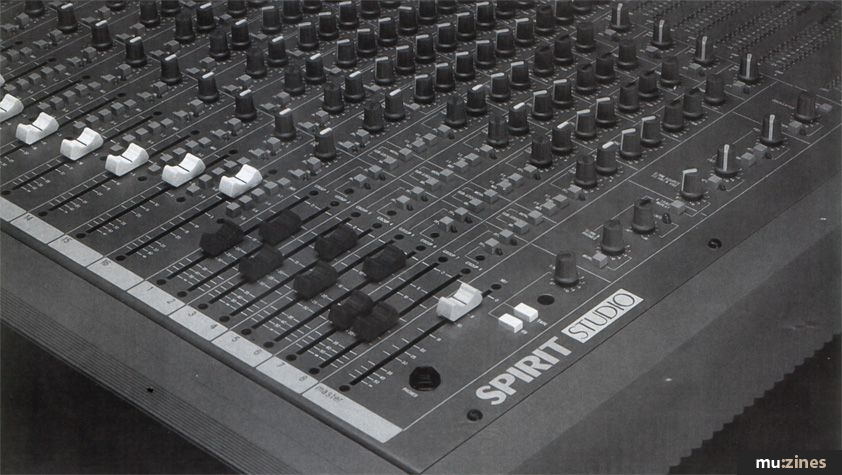
Do you remember what it was like, the first time you were confronted with a real live mixing console in the flesh, one on one? You knew that it was expecting you to take control, handle its knobs and faders with confidence and be the total and complete master of the situation. But you didn't have the experience then, and all you were able to do was fumble around clumsily. The console stood there in front of you, cold and unresponsive, silently mocking your feeble attempts.
Some first times are more memorable than others, but I think each of us can remember our first experience with a mixing console. Mine was luckily in the privacy of a locked control room. By the time I had to do it for real in front of an expectant audience I had managed to grasp most of the basics, mainly by trial and error. Now there is a little more help available in books, magazines and — amazingly enough — instruction manuals, which some enlightened manufacturers have taken the trouble to make reasonably understandable and useful. There is also the feeling around now that you don't have to understand everything about a piece of equipment. It's OK to want to learn more. Once upon a time you wouldn't dare admit that there was a particular knob or switch of whose function you didn't have a total grasp. Now there are plenty of competing mixing console manufacturers around. If we find manufacturer A's console too difficult to work with, then we'll turn to manufacturer B without a second thought.
But even though many manufacturers are working hard at focussing their products directly on the task in hand, whatever it may be, and matching every function to a particular requirement of the job, the fact is that making a multitrack recording is a complex procedure, and even with advances in computer technology taking away some of the drudgery in high end installations (with fader automation, for example), recording engineering is still and always will be a highly skilled profession.
Last month, I followed the recording process through setting up and track laying on a Soundcraft Spirit Studio console. I chose this particular console for Hands On because it has all the basic functions you would expect a console to have, and few of the frills, and as it moves into the mature phase of its product life cycle it will undoubtedly be found in more and more studios, both commercial and private. There are of course other consoles I could have chosen, so don't necessarily take this instructional text to be a specific recommendation to choose Soundcraft above all others.
Track laying and overdubbing are operations requiring considerable skill, and the mixing console must be operated with fluency if the musicians are going to be able to give of their best. As a musician myself I know that I want the engineer to make things easy for me, adjusting monitoring and foldback to my taste while I am laying down my part, and not doing silly things like cutting off the monitoring while I'm rehearsing a difficult passage. Mixing is another art altogether, and it's not unusual to find engineers who specialise in mixing and hardly do track laying work at all. Here I will explain the practicalities and details — which buttons to press and which knobs to twiddle — of mixing on the Soundcraft Spirit. For advice on the art of mixing, refer back to my Recording Techniques series.
PREPARE TO MIX
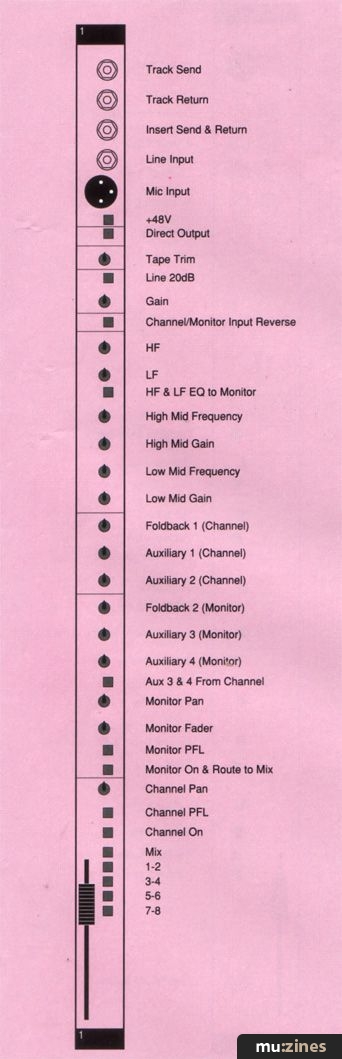
Figure 1. Channel strip
Large mixing consoles have what is known as master switching which allows you to change from track laying or overdubbing mode to mixing at the press of a single button. Although these consoles have extra switching to make their operation more convenient, it can actually make them harder to understand for a newcomer, because one convenience is layered on another until you are so snowed under that you haven't a clue what's going on. On the Spirit Studio console you will have to press a number of buttons manually — 16 or 24 in fact, instead of one master mode-changing switch, but at least you'll know exactly what you're doing right from the word go.
During track laying and overdubbing (in common usage 'track laying' or 'tracking' means recording the very first tracks on a blank tape, 'overdubbing' means adding to them), the engineer will control the levels of the various sound sources, mics and synths etc., from the faders. To hear the return from the multitrack machine, whether the input monitor or the playback signal, the rotary monitor fader and monitor pan controls can be used to route the signal to the control room loudspeakers. (On some consoles, the rotary fader is replaced by a small linear fader. The channel source is normally spoken of as being on the large fader and the monitor on the small fader).
To mix, obviously we need to have the signals from the multitrack on the large faders, so to achieve this we must press the Channel/Monitor Input Reverse switch on every channel to which the multitrack is connected. Start pressing now, and I'll have a little break while you do this. Figure 1 shows you where this button is.
The important point to remember about in-line consoles, of which the Spirit Studio is an example, is that each channel strip has two signal paths, often referred to as the primary and secondary paths. The primary path takes the signal from the mic or line input. During track laying and overdubbing on the Spirit Studio this can access the EQ, Foldback 1, Auxiliaries 1 & 2, the large fader and multitrack routing. The secondary path takes the signal from the corresponding track of the multitrack tape machine. This can access Foldback 2, Auxiliaries 3 & 4, the rotary fader and routing to the mix (master) fader. Pressing the Channel/Monitor Input Reverse button reverses all of this so that the mic or line input goes through the secondary signal path and the tape input goes via the primary path. Read this paragraph again, because it contains probably the most important single concept to grasp in order to operate the Spirit effectively.
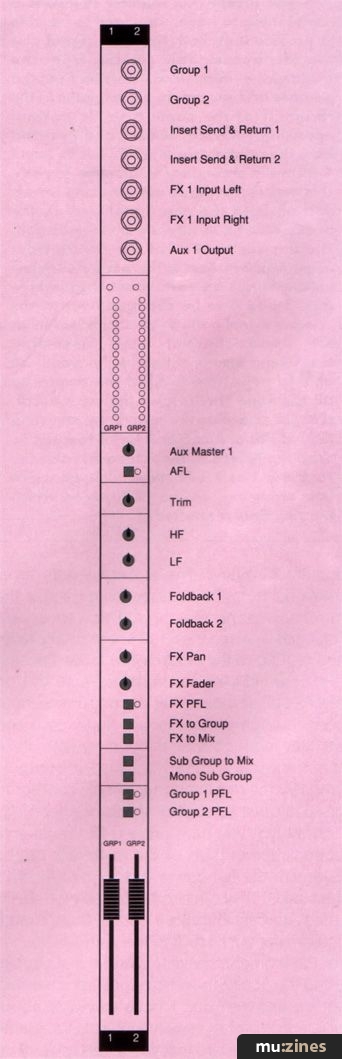
Figure 2. FX return and group fader
Now that you have pressed all the Reverse buttons, the outputs of the multitrack can be EQd with the full power of the Spirit Studio's 4-band EQ. They can also be treated with effects using Auxiliary Outputs 1 and 2. There's more you can do, but I'll stick to the simplest situation for the moment. I have to assume that you are using the Spirit Studio in a studio which is fully set up and you don't have to worry about plugging any of the equipment in. Let's assume that there's a reverb unit connected to Auxiliary Output 1 and a stereo recorder to the Mix output and to the 2-T/ack input. You can see these connections in Figure 3.
Press the Mix routing button on every channel that you are going to use. Make sure that no other Mix buttons are pressed, either by the large faders or by the rotary monitor faders. This mixer, in its 24-channel version, can combine up to 64 sources (a little bit of clever trickery can extend it beyond the obvious 56) and every routing button that is depressed unnecessarily adds a little bit of noise to the mix. It is an important recording engineering discipline to always deselect unwanted routings. It's best to do this as you go along, to avoid excess noise and undesirable accidents. If you started work with the console fully zeroed (see panel) then you wouldn't have had to check the Tape Trim controls. All of these should be set to their central detented position to start with.
You are now almost ready to begin mixing, but first a quick check on how well the stereo machine is lined up to the console. Turn the monitor level down, set the oscillator to 1kHz and route it to Tape. Adjust the mix fader so that the first red LED lights up on the left and right bargraph meters. Check that the meters on the stereo machine are also reading peak level, and adjust the input levels if they are not. What you should regard as peak level on your stereo machine depends on how it is aligned to the tape (and whether it is analogue or digital). You can do a few experiments peaking at different levels to find out what's acceptable, but it's important that you take at least the basic step of aligning the stereo machine to the console's meters. The mixing console is the centre of recording operations, and while you are mixing you will control levels from here, not on the stereo recorder.
Deselect the oscillator when you have done this. You are bound to want to use some reverb in the mix, so let's assume that you have an effects unit connected to Auxiliary 1 and to FX Return 1 (the FX returns on this console are stereo). Raise the level of the Auxiliary 1 master to around 7 and press the FX to Mix button below the FX 1 Pan and Fader controls.
GO FOR IT
After all this preparation you are ready to start mixing. Raise the Mix fader to around -5dB and off you go. As I said, mixing is an art, so I'm not going to tell you how to make a good mix, just how to do it. If you juggle the faders long enough you will get a mix that is at least acceptable.
The first thing you will probably want to do is add reverb to some channels. Since we have set the auxiliary master and FX returns already you only need to raise the Aux 1 controls for the channels on which you want reverb, and raise the FX return level. If you don't hear any reverb straight away then I would recommend pressing the AFL (After Fade Listen) button below the Aux 1 master to see if you are actually sending any signal to the reverb. Check also that the input meter on the reverb unit is showing an input and that it is at the correct level. In relation to what I said earlier about controlling all levels from the console, it's best always to set the input level of the reverb unit to a fixed value and control the input to it from the console, from the Channel aux sends to set individual reverb levels and from the aux master to control the overall input.
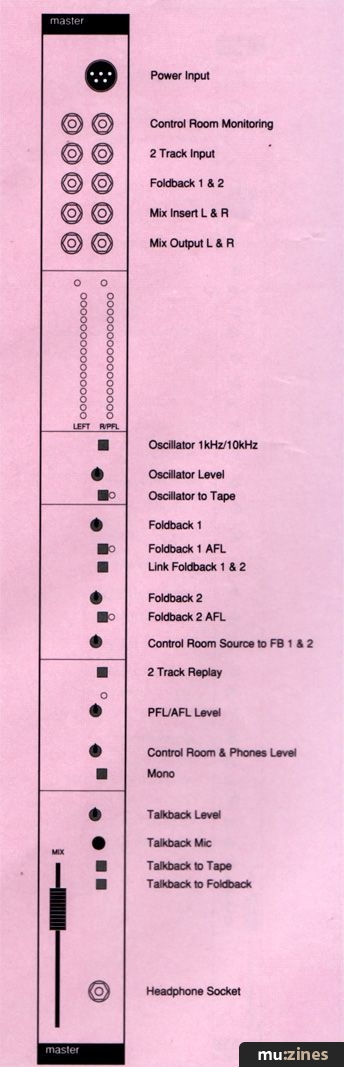
Figure 3. Master controls, foldback and talkback
You may notice at this stage of your mix that some of the faders are at very low levels. If the the recording was done correctly then this will be because you only want the signals they are carrying to be present in the mix at low volume, but it isn't easy to control a fader accurately in this position. The answer is to reduce the level of the signal coming into the fader using the Tape Trim control near the top of each channel. This will help you position the faders more conveniently. Watch out, however, that the PFL LED doesn't flash on any of the channels. This indicates that the signal level in the channel is approaching clipping. To cure this during track laying and overdubbing, reduce the channel's gain; during mixing lower the Tape Trim.
ADVANCED WORK
By now you know how to make a basic mix with the Spirit Studio. But there are a few more buttons that you will probably want to know just a little more about. One of the bonus features on modern consoles, that wasn't available even on some consoles built just a few years ago, is the ability to use the monitor signal path of each channel as an extra input to the mix. If you remember, we pressed the Channel/Monitor Reverse button on every channel to route the signal from the multitrack to the large fader. This leaves the rotary fader vacant for something else.
The 'something else' I'm talking about will most probably be MIDI sequenced tracks coming from synths and samplers, expanding the capabilities of your studio beyond 24 tracks up to a potential 48. Suppose you have a synth plugged into the line input of Channel 1 and you would like to use it in the mix. It's simple — just press the 'On' button below the PFL associated with the rotary Monitor Fader control, and you have another source available with control over level and pan. Being able to control the level and pan doesn't sound like much, and you may want to add some EQ too. Well you can: if you haven't used the FHF and LF controls on the primary signal path then you can press the EQ to Monitor button and you have those controls available on the secondary path, which is carrying the output of the synth. You should also have in mind that there is a button on each channel to assign Auxiliaries 3 and 4 to either the primary or secondary paths. How you would use this is up to you — it depends on what equipment you have available and how it's connected, but at least you know that there is some useful extra flexibility available.
AFTER THE MIX
After you have committed what you think is a good mix to the stereo recorder, you'll want to hear it. Rewind the tape, press the 2 Track Replay button and hit Play. What you hear probably won't be the best you can achieve, but you will have proved to yourself that you can carry out a mix. Your next attempt will be a little bit better, and the next one a little bit better still. I haven't covered everything there is to cover on the Soundcraft Spirit Studio, but you certainly have enough information to be going on with. Later on in the Hands On series I shall be looking at a rather larger mixing console. We'll see a few similarities and a few differences, but what you know about a small console is fortunately fully upwards compatible.
ZEROING THE CONSOLE
DARE TO BE DIFFERENT?
MONITOR REVERB
If you accept that monitor reverb is a useful thing to have, you need to be able to provide it on both the input signal and the off-tape signals coming from the multitrack — in other words from both the primary and secondary signal paths in the channels at the same time. In normal operation. Auxiliary Sends 1 and 2 are fed from the primary signal path. Sends 3 and 4 from the secondary — monitor — path. This makes it tricky to use the same reverb unit on both the new vocal and on the tracks that have already been recorded. The answer is to drive the reverb from either Aux 3 or Aux 4. There is a switch just below Aux 4 on each channel to enable Aux 3 and 4 to be changed over to the primary signal path, so press this button on the vocal channel only. Assuming everything else is set correctly, you'll be able to adjust the level of the reverb on all the tape tracks and the new vocal, without recording the reverb, by adjusting the individual Aux 3 or 4 levels to taste. To send the reverb to the foldback, raise the Foldback 1 or 2 level (depending on which you are using) on the FX Input to which the reverb is connected.
FOLDBACK ALTERNATIVES
• Use the automatic monitoring function of the multitrack to return the vocal to the tape monitor on the channel corresponding to the track on which the vocal is being recorded. Route the foldback via Foldback 2 from all tracks. The vocalist will be able to hear the live mic during preparation and recording. During playback the vocalist will hear the playback signal and the mic will be cut off.
• Route foldback from Foldback 2 as above. Also, route foldback from the mic channel to Foldback 1. Press the Foldback Link button. The vocalist will hear the live mic at all times, plus the recorded vocal on playback. During recording, automatic monitor switching in the multitrack will cause the level of the vocal to rise by about 6dB in the foldback.
• Set all channel and monitor foldback levels to zero. Raise the Control Room Monitor to Foldback 1 & 2 level. The vocalist will hear what you are hearing, but in mono.
• As above, but if the vocalist wants more level on the mic, raise the Foldback 1 level on the mic channel.
Series - "Hands On - Spirit Mixer"
This is the last part in this series. The first article in this series is:

Hands On: Soundcraft Spirit Studio Mixer
(SOS Apr 92)
All parts in this series:
Part 1 | Part 2 (Viewing)
More with this topic
 MixMastery |
 Insider Fading - Behind The Design Of The Soundcraft DC2000 Moving Fader Console |
 Personalise Your Drum Machine Sounds - Masterclass - Drum Machines |
 Vive La Difference! - Choosing Mixers For Live Sound |
 Home Recording: Frequency Balancing |
 Monitoring - Sound Workshop |
 The perfect mix |
 Speaker's Corner - CHOOSING & USING: studio monitoring |
 MIDI Muting - Sound Workshop |
 The Explosive Mixture - The First Single |
 EQ |
 Multitrack Mixers - Sound Workshop (Part 1) |
Browse by Topic:
Mixing
Also featuring gear in this article

Free The Spirit! - Soundcraft Spirit Studio
(SOS May 91)

Soundcraft Spirit Studio - Mixing Desk
(MT Jun 91)
Browse category: Mixer > Soundcraft
Publisher: Sound On Sound - SOS Publications Ltd.
The contents of this magazine are re-published here with the kind permission of SOS Publications Ltd.
The current copyright owner/s of this content may differ from the originally published copyright notice.
More details on copyright ownership...

Sound On Sound - May 1992
Feature by David Mellor
Ads for Gear in this article:


Previous article in this issue:
Next article in this issue:
Help Support The Things You Love
mu:zines is the result of thousands of hours of effort, and will require many thousands more going forward to reach our goals of getting all this content online.
If you value this resource, you can support this project - it really helps!
Donations for April 2026
Issues donated this month: 0
New issues that have been donated or scanned for us this month.
Funds donated this month: £0.00
All donations and support are gratefully appreciated - thank you.
Magazines Needed - Can You Help?
Do you have any of these magazine issues?
If so, and you can donate, lend or scan them to help complete our archive, please get in touch via the Contribute page - thanks!
If you're enjoying the site, please consider supporting me to help build this archive...
...with a one time Donation, or a recurring Donation of just £2 a month. It really helps - thank you!

 @mu_zines
 RSS Feed
 Blog
Blog